Max for Live Instruments in Ableton: How to Load Them
Max for Live instruments are played via MIDI, like other Ableton instruments. Not all Max devices generate sound: some only modify notes or process audio. Identifying the correct type avoids loading an effect and expecting it to play on its own.
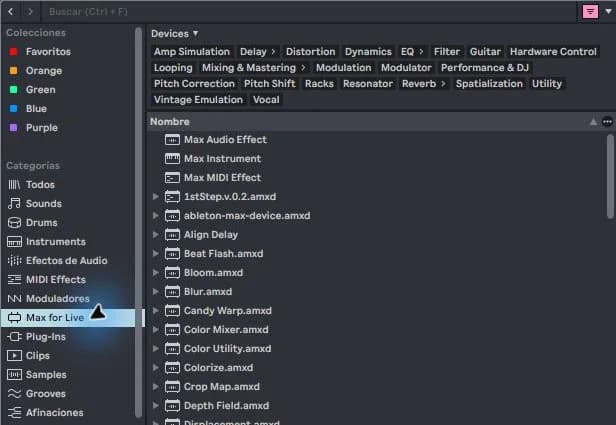
step by step
- Locate a Max instrument installed and compatible with your license. Read its description before uploading it.
- Create a MIDI track and drag the instrument into its chain. Check that the audio output reaches Main.
- Create a clip with short notes. Use a midrange for the first test and adjust the listening volume before playing.
- Modify one parameter at a time and save your own preset if the device supports it. Identify which settings are part of the sound.
Guided practice
Write a pattern of one note per beat. Change the duration of the notes first and then their pitch. If the instrument responds unusually, consult its documentation: it may be a sequencer or a generator with its own trigger.
Take it to your next session
Studying a track within an entire project helps understand the relationship between instrument, MIDI and mix. Choose an Ableton project with compatible requirements and compare its pattern with yours.
Check the range and duration of notes
A Max for Live instrument can respond very differently depending on the recording it receives. It begins with notes close to the middle of the keyboard and clearly audible durations. Then change the height and length separately, observing which of the two modifies the result.
Use a small pattern to study the device and avoid filling it with effects from the beginning. If the tone needs too much processing to fit, perhaps another instrument is an easier choice. Save a preset of your test when you find a useful starting point for future projects.
If it doesn't turn out as you expected
MIDI activity is not equivalent to audio. Check the instrument gauge, chain and output. If the device requests external files, resolve that dependency before adding effects.
PUT THE WORKFLOW TO USE
View Ableton projects
Studying a track within an entire project helps understand the relationship between instrument, MIDI and mix. Choose an Ableton project with compatible requirements and compare its pattern with yours.QUICK ANSWERS
Frequently asked questions
KEEP BUILDING
Related production guides
How to use a Max for Live LFO in Ableton
An LFO moves a parameter periodically. In Ableton you can use it to give movement to a filter, width or effect control. Learning begins with a small, audible modulation; Moving too many parameters at once makes it difficult to know which one changes the sound.
How to Install Max for Live AMXD Devices in Ableton
An AMXD file contains a Max for Live device. Installing it does not consist of copying it to the VST folder. It is advisable to save it in a stable way, along with any additional files provided by its creator, so that your Ableton projects can find it later.
What is Max for Live in Ableton and what is it for?
Max for Live extends Ableton with devices that can generate sound, process audio, or transform MIDI. It is not a sample pack or other VST format. You don't need to program to get started: you can use existing devices and learn what they do within a track.