How to activate and check Max for Live in Ableton
In current versions of Ableton, Max comes built into the installation. Before looking for another installer, check your license and which Max app Live is using. Installing a standalone copy does not convert an edition without the proper license to an edition with Max for Live.
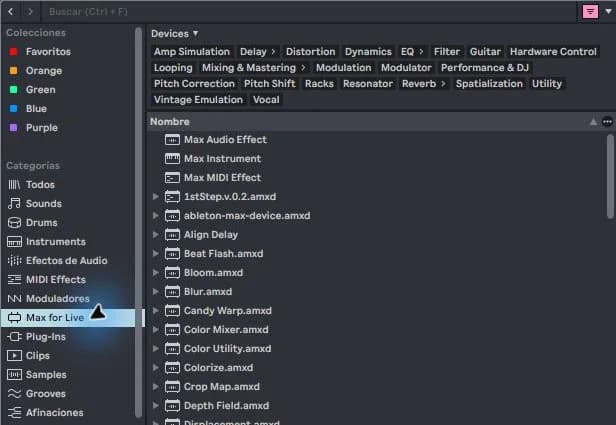
step by step
- Check your Ableton account to see which edition and license you have. Suite includes Max for Live; Check the current options for your edition if you use another one.
- Open Settings > File & Folder and locate App Max. In the documented installation for this series, the included version is selected.
- Exit Settings and look for a compatible Max device that is already installed. Load it on the correct track type.
- If it fails, write down the entire message and review the device requirements. An insufficient Max version is a different problem than a missing license.
Guided practice
Check a simple, included device first. Only then try an external device. If the first works and the second does not, you will have a concrete clue to check compatibility and dependencies.
Take it to your next session
A Starter Pack should help you get started, not add unexpected requirements. Check the included formats and devices before choosing it and use this review to know what you will be able to open in your installation.
Separates license, installation and operation
Just because you see AMXD files in a folder doesn't mean your Live edition can use them. Check the availability of Max for Live for your license first, then try a known device on an empty Set. This way you avoid attributing an installation problem to the project.
If a particular device fails and another works, focus your search on its requirements or dependencies. Don't change the entire configuration for a single file. Keep the error message and device version for reference to its documentation; That information is often more useful than repeating the installation without a hypothesis.
If it doesn't turn out as you expected
Don't switch Max apps or update the entire system as a first attempt. Keep your project and check the official recommendation for your exact version of Live.
PUT THE WORKFLOW TO USE
See Starter Packs
A Starter Pack should help you get started, not add unexpected requirements. Check the included formats and devices before choosing it and use this review to know what you will be able to open in your installation.QUICK ANSWERS
Frequently asked questions
KEEP BUILDING
Related production guides
Max for Live Instruments in Ableton: How to Load Them
Max for Live instruments are played via MIDI, like other Ableton instruments. Not all Max devices generate sound: some only modify notes or process audio. Identifying the correct type avoids loading an effect and expecting it to play on its own.
How to Install Max for Live AMXD Devices in Ableton
An AMXD file contains a Max for Live device. Installing it does not consist of copying it to the VST folder. It is advisable to save it in a stable way, along with any additional files provided by its creator, so that your Ableton projects can find it later.
What is Max for Live in Ableton and what is it for?
Max for Live extends Ableton with devices that can generate sound, process audio, or transform MIDI. It is not a sample pack or other VST format. You don't need to program to get started: you can use existing devices and learn what they do within a track.