How to listen to samples at the tempo of your project in Ableton
Listening to an isolated sample and listening to it within a project are different tests. A loop can look cool on its own and compete with the kick when you put it into Ableton. Use pre-listening to filter options and an audio track to make the final decision.
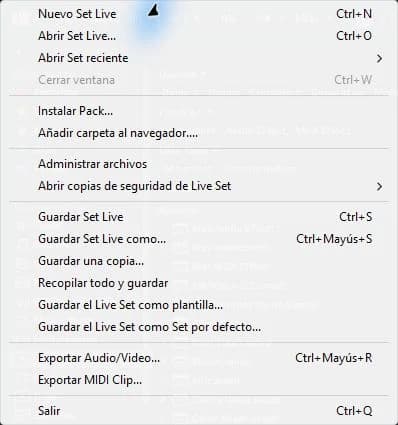
step by step
- Activate the browser's pre-listening and adjust its listening level. Start with a moderate volume.
- Select a loop and see if Ableton can sync its cue. Don't assume that any file will align correctly.
- Drag the candidate to a track in the project, activate Warp where appropriate, and check the first beat.
- Play along with the kick and check that the end of the loop is not advanced or delayed.
Guided practice
Compare three drum loops on the same pattern. For each one, listen to a complete lap and note if it leaves room for the kick. Don't change the master volume between candidates - adjust the track level to compare them fairly.
Take it to your next session
Choose samples by how they work in your project, not just by their volume in the demo. Explore Technopirata libraries and check style, format and content before adding more material.
Compare the sample within your beat
Prior listening serves to rule out options, but the final judgment must be made within the project. A cool loop on its own can compete with your hats or introduce an accent that changes the feel of the groove. Import the best options and compare them with the kick working.
Maintain a similar volume between candidates and listen to several measures. If one seems better just because he is stronger, lower his gain before deciding. Also check the start of the file and its length: a shifted input can make a good loop sound rhythmically incorrect.
If it doesn't turn out as you expected
If sync fails, check the actual length and tempo of the file. A name that says 130 BPM is no substitute for listening to the beginning and the end. Some free sounds or textures do not have a regular pulse.
PUT THE WORKFLOW TO USE
Explore sample libraries
Choose samples by how they work in your project, not just by their volume in the demo. Explore Technopirata libraries and check style, format and content before adding more material.QUICK ANSWERS
Frequently asked questions
KEEP BUILDING
Related production guides
How to import multiple samples to separate tracks in Ableton
When importing multiple samples into Ableton, first decide whether you want a sequence on a single track or simultaneous sounds on different tracks. That decision changes what you can edit and mix later.
How to organize samples with Collections in Ableton
Ableton Collections are visual access points to find popular material. You can create your own logic without renaming or reorganizing the original files of a library. The useful thing is that each color responds to a work decision.
How to add your samples folder to the Ableton browser
Adding a samples folder to Ableton's browser creates convenient access to your files; it doesn't make that folder part of every project. Use a stable location and preserve the original organization of the library to avoid broken references.